Credit cards can make everyday spending easier, but keeping track of balances, due dates, rewards, and fees can quickly become complicated—especially if you use more than one card. A well-designed spreadsheet brings those details together in one place. It can help you see what you owe, plan payments, avoid missed due dates, and understand where your money is going.
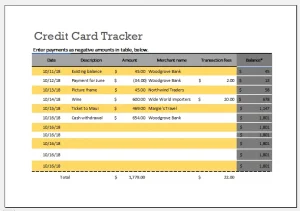 A spreadsheet won’t replace your card issuer’s statements or account alerts, and it can’t make financial decisions for you. But with a few carefully chosen columns and a regular update routine, it can become a useful companion to your accounts.
Why Track Credit Cards in a Spreadsheet?
Credit card statements and banking apps show account activity, but information may be spread across multiple accounts. A spreadsheet gives you a single view of key details, such as:
- Each card’s balance and credit limit
- Payment due dates and minimum payments
- Interest rates and annual fees
- Recent spending and payment activity
- Rewards earned or redeemed
- Progress toward paying down balances
The main benefit is visibility. For example, a tracker can make it easier to spot a card approaching its limit or a payment due soon. It can also help you compare current balances with previous months and see whether your payoff plan is making progress.
What to Include in Your Credit Card Tracker
A useful tracker can be simple. Start with one row per card, then add transaction details on a separate sheet if you want more depth.
Card overview
Create a summary table with columns such as:
| Column | What it tells you |
|---|---|
| Card name | A nickname, such as “Travel” or “Everyday” |
| Issuer | The bank or credit union |
| Last four digits | Helps distinguish cards without storing the full number |
| Credit limit | The limit shown in your account |
| Current balance | The latest balance you have confirmed |
| Statement balance | The amount listed on your most recent statement |
| Minimum payment | The minimum due for that statement |
| Due date | The payment deadline |
| APR | The annual percentage rate listed by the issuer |
| Annual fee | The card’s yearly fee, if any |
| Rewards balance | Optional; the amount shown in the issuer’s rewards account |
Keep current balance and statement balance separate. The current balance may include purchases made after the last statement closed, while the statement balance reflects the amount billed for that cycle. Check your card agreement and statement for the terms that apply to your account.
Transaction log
For a more detailed view, add a second sheet with one row per transaction:
| Date | Card | Description | Category | Amount | Type |
|---|---|---|---|---|---|
| Nov. 3 | Everyday | Grocery store | Groceries | 68.42 | Purchase |
| Nov. 5 | Travel | Hotel | Travel | 240.00 | Purchase |
| Nov. 12 | Everyday | Card payment | Payment | 100.00 | Payment |
Use consistent categories—such as groceries, transportation, dining, bills, travel, and subscriptions—so you can summarize spending later. You can record payments as negative amounts or mark them in a separate “Type” column; choose one method and use it consistently.
Set Up Helpful Spreadsheet Formulas
Formulas can turn a basic list into a useful dashboard. The exact syntax varies slightly between spreadsheet applications, but these examples work in common tools such as Excel and Google Sheets.
Calculate credit utilization
For a single card, utilization is generally calculated as the balance divided by the credit limit:
=IFERROR(CurrentBalance/CreditLimit,0)
Format the result as a percentage. For example, a $600 balance on a $3,000 limit is 20%.
You can also calculate an overall figure by dividing the total balances by the total limits:
=IFERROR(SUM(BalanceRange)/SUM(CreditLimitRange),0)
Treat utilization as a tracking measure, not a target or a guarantee of a particular credit-score outcome. Credit-scoring methods vary, and factors beyond utilization can affect a score.
Calculate total card balances
=SUM(BalanceRange)
This gives you a quick snapshot of the balances you have entered. Make sure the figures are current and that you are not accidentally adding both a statement balance and a current balance for the same card.
Flag upcoming due dates
If a due date is in cell H2, a simple formula can show how many days remain:
=H2-TODAY()
You can use conditional formatting to highlight dates that are coming up soon. For example, mark a due date red when it is within seven days and the minimum payment has not been recorded as paid.
Track payoff progress
Add a “Starting balance” column and compare it with the latest balance:
=StartingBalance-CurrentBalance
This shows how much the balance has fallen since your starting point. For a clearer month-to-month view, keep a dated snapshot of each card’s balance instead of overwriting the previous month’s figures.
Choose a Payment-Tracking Method
A spreadsheet can help you organize payments, but your issuer’s payment system remains the source of truth. Consider recording:
- Payment amount
- Payment date
- Date the payment was scheduled
- Date the payment posted, if known
- Confirmation number or a short note
It can also be helpful to distinguish between a payment that is planned and one that has actually posted. A payment marked “scheduled” may not yet have reached the account.
Set reminders in your calendar or use issuer alerts for due dates. A spreadsheet is most useful as a planning and review tool; it should not be the only safeguard against a late payment.
Make the Tracker Easier to Use
The best spreadsheet is one you’ll actually maintain. A few small design choices can help:
- Use one row per card. Avoid combining several cards into a single cell.
- Freeze the header row. This keeps column names visible while you scroll.
- Use drop-down lists for categories. Consistent labels make summaries more reliable.
- Add filters. Filters let you quickly view one card, category, or time period.
- Use conditional formatting sparingly. Highlight due dates, unusually high balances, or missing information.
- Separate inputs from calculations. Use different colors or tabs for data you enter and formulas the sheet calculates.
- Keep a dated monthly snapshot. This preserves history and makes trends easier to review.
- Test formulas with sample data. A formula that looks right can still reference the wrong cells.
If you prefer a minimal setup, start with card name, balance, credit limit, minimum payment, due date, and payment status. You can add transaction categories and rewards tracking later.
Protect Your Financial Information
A spreadsheet containing account details is sensitive. Limit what you store and where you store it.
- Never enter full card numbers, security codes, PINs, passwords, or one-time verification codes.
- Use a card nickname or, if necessary, only the last four digits.
- Protect the file with a strong password or use an access-controlled cloud account.
- Don’t share the file through a public link.
- Be cautious about syncing it to devices or accounts that others can access.
- Review sharing permissions periodically and remove access that is no longer needed.
A spreadsheet should contain only the information needed for your tracking system. The Federal Trade Commission recommends taking care to protect personal and financial information, including by using appropriate safeguards for accounts and devices.[1]
Common Mistakes to Avoid
Mixing statement and current balances
These figures can differ because new purchases may post after the statement closes. Label each column clearly and avoid adding both values together as if they were separate debt.
Forgetting pending transactions
A purchase may not appear in your account immediately. If you rely on a transaction log, reconcile it against your issuer’s activity so your sheet doesn’t give a false sense of precision.
Treating estimated rewards as final
Rewards programs may use different rules for eligible purchases, bonus categories, caps, and redemptions. Use the issuer’s rewards account to confirm your actual balance and terms.
Relying only on the spreadsheet for due dates
A typo or outdated entry can cause a missed payment. Set issuer alerts or calendar reminders, and verify due dates against current statements.
Overcomplicating the design
Too many tabs and formulas can make a tracker difficult to maintain. Start with a simple overview and add features only when they answer a question you regularly have.
A Simple Monthly Review Routine
Once a month—or more often if you prefer—take a few minutes to:
- Compare each card’s balance with the issuer’s account.
- Record statement balances, minimum payments, and due dates.
- Mark payments as paid only after confirming them in the account.
- Review spending categories and investigate transactions you don’t recognize.
- Check whether balances are moving in the direction you intended.
- Save a dated copy or snapshot if you want to track long-term changes.
If you find an unfamiliar transaction, contact the card issuer promptly using the contact information on its official website or statement. A spreadsheet can help you notice discrepancies, but the issuer is the right place to report them.
Conclusion
A credit card spreadsheet is a straightforward way to bring balances, due dates, payments, and spending into one view. Start with the information you need most, use formulas only where they make the tracker clearer, and compare your entries with official account records regularly. Most importantly, protect the file by leaving out credentials and other sensitive data.
With a consistent monthly review, even a simple tracker can help you stay organized and make more informed decisions about how you use and repay your cards.
Sources
- Federal Trade Commission, Protecting Personal Information: A Guide for Business (general guidance on safeguarding sensitive information).
- Consumer Financial Protection Bureau, Credit card resources (information and tools for understanding credit cards and managing accounts).
- Consumer Financial Protection Bureau, What is a grace period for a credit card? (explains how grace periods work and why card terms matter).
- FICO, Amounts Owed: How Your Credit Utilization Ratio Affects Your Credit Score (background on utilization and credit scoring).